See the real desktop
CoView observes screenshots, foreground apps, and multi-display context so it can enter the interface you are already using.
CoView runs a visual control loop: observe the screen, understand the task, take one action, then observe again. It can keep real work moving across browsers, editors, documents, and desktop apps instead of staying inside a chat box.
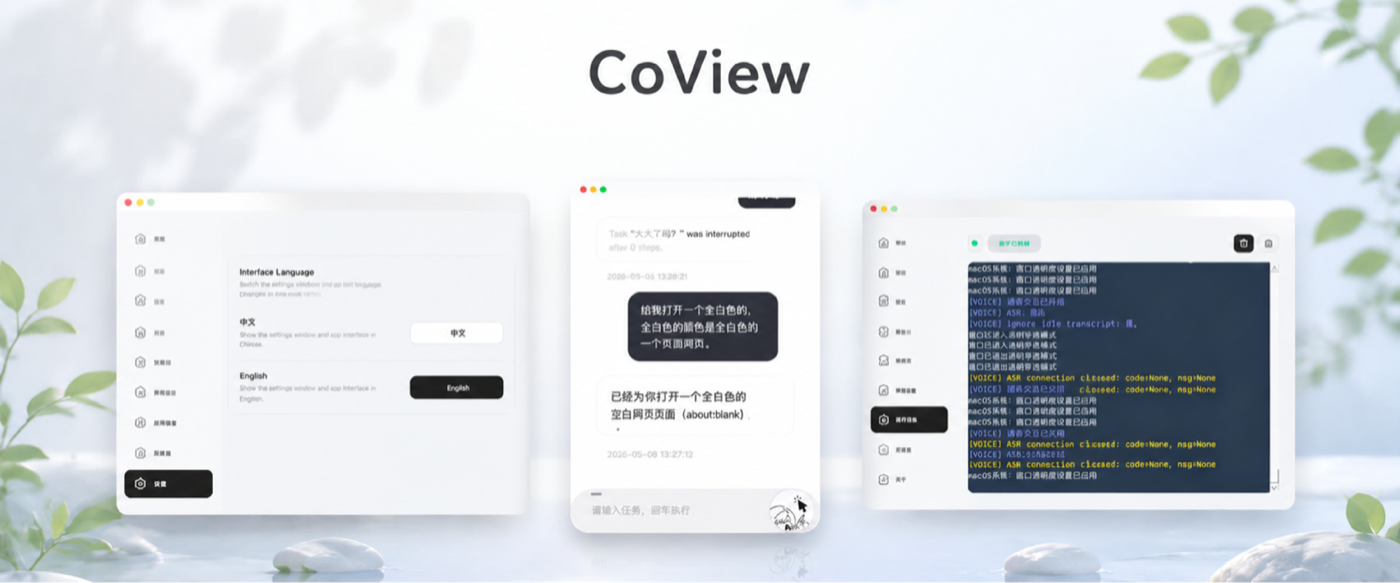
From waking the companion and understanding the current interface to clicking, typing, moving the task forward, and reporting progress, this demo shows how CoView connects seeing with doing.
It connects visual understanding, desktop operation, voice interaction, and background Agents into a continuous workflow, so AI does more than answer: it helps carry the task forward.
CoView observes screenshots, foreground apps, and multi-display context so it can enter the interface you are already using.
It can click, drag, scroll, press shortcuts, enter text, and read web pages or documents without constant manual switching.
Task input, stop controls, live logs, suggestions, and final reports all live inside one floating workspace.
CoView is not built around one-off answers. Its core loop is observe the screen, understand the task, take one action, and observe again. When pages load, interfaces change, or a task gets interrupted, it can decide whether to continue, ask for confirmation, or switch strategy.
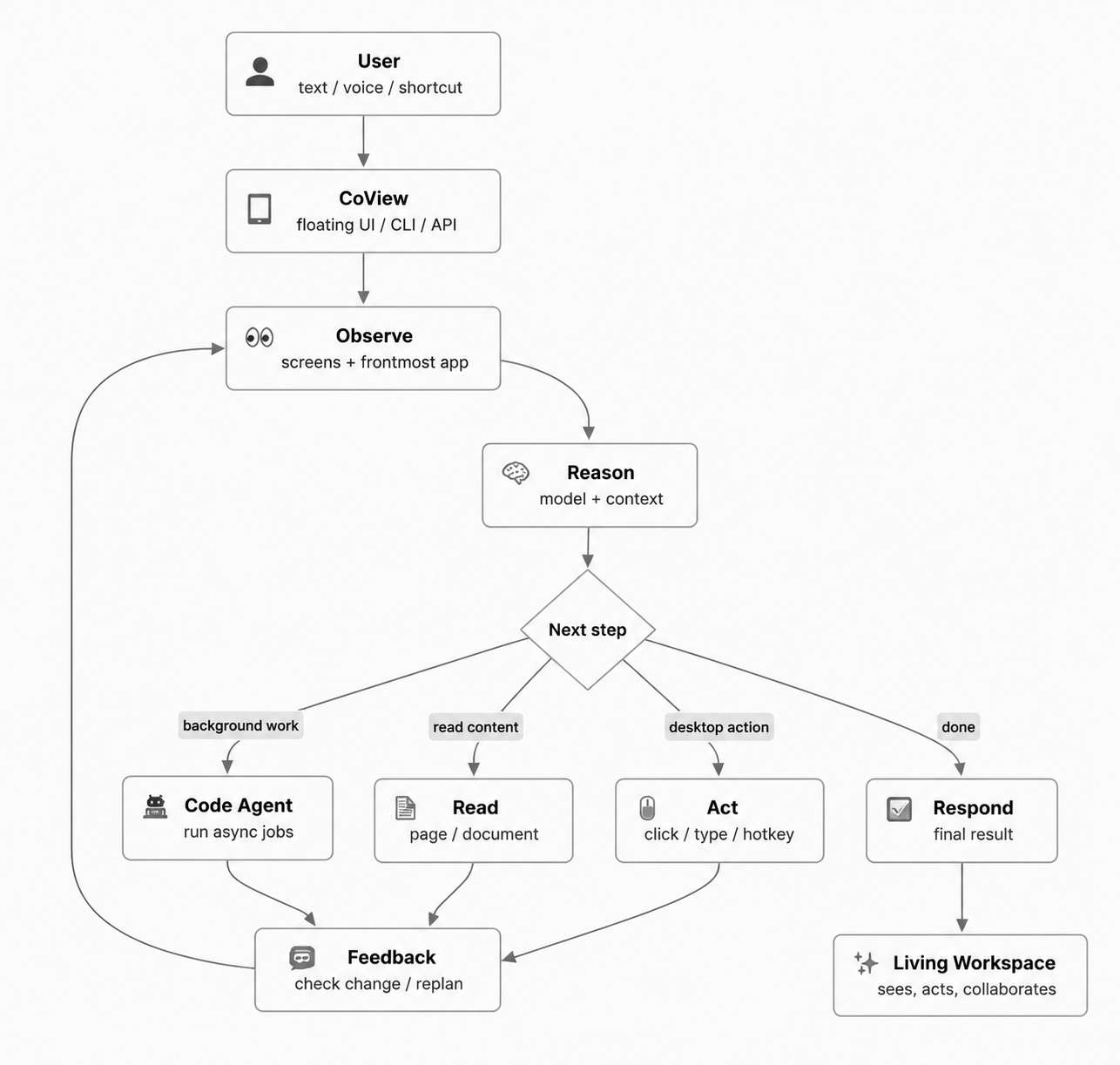
Instead of asking you to write a long prompt first, CoView understands the current environment and advances the task through step-by-step desktop actions.
Understand the screen, foreground app, and context without making you explain everything from scratch.
Use model reasoning, history, and safety boundaries to choose the best next action.
Click, type, scroll, use shortcuts, or read content so the task actually moves forward.
Use interface changes to decide whether to continue, pause for confirmation, or choose a new path.
CoView offers a GUI, voice entry, background Code Agents, CLI access, and a Python API, making it useful for both personal workflows and business integration.
Combine the current screen, foreground app, and task history so you do not have to repeat where you are or what you need.
Enter tasks, review progress, pause execution, and accept suggestions directly in the floating companion.
Read current pages and documents, extract key information, and turn it into the basis for the next action.
Execution is not a black box: CoView keeps reporting progress, completed actions, and final outcomes.
Perform mouse-level actions inside real desktop apps without making you take over each step.
Use key combinations, enter text, and progress through forms for continuous office work.
Connect full action chains across browsers, editors, document tools, and desktop applications.
Understand display metadata across multiple monitors, matching real work setups more closely.
Use local wake words such as "ni hao xiao tong" or "hey Lucy" to enter a natural desktop collaboration flow.
Voice input passes through VAD, optional echo cancellation, and realtime transcription for speak-while-working scenarios.
While tasks and voice playback are running, CoView can recognize intents such as stop, new_task, and ignore.
Progress and final results can be spoken aloud, making the computer feel more like a working partner.
Complex work can be handed off to background Agents so the foreground workflow is not blocked.
Connect OpenAI-compatible model services and choose providers flexibly for different task types.
Use the graphical app directly, or integrate CoView into command-line and Python workflows.
Confirmation policies, logs, and permission boundaries help reduce the risks of desktop automation.
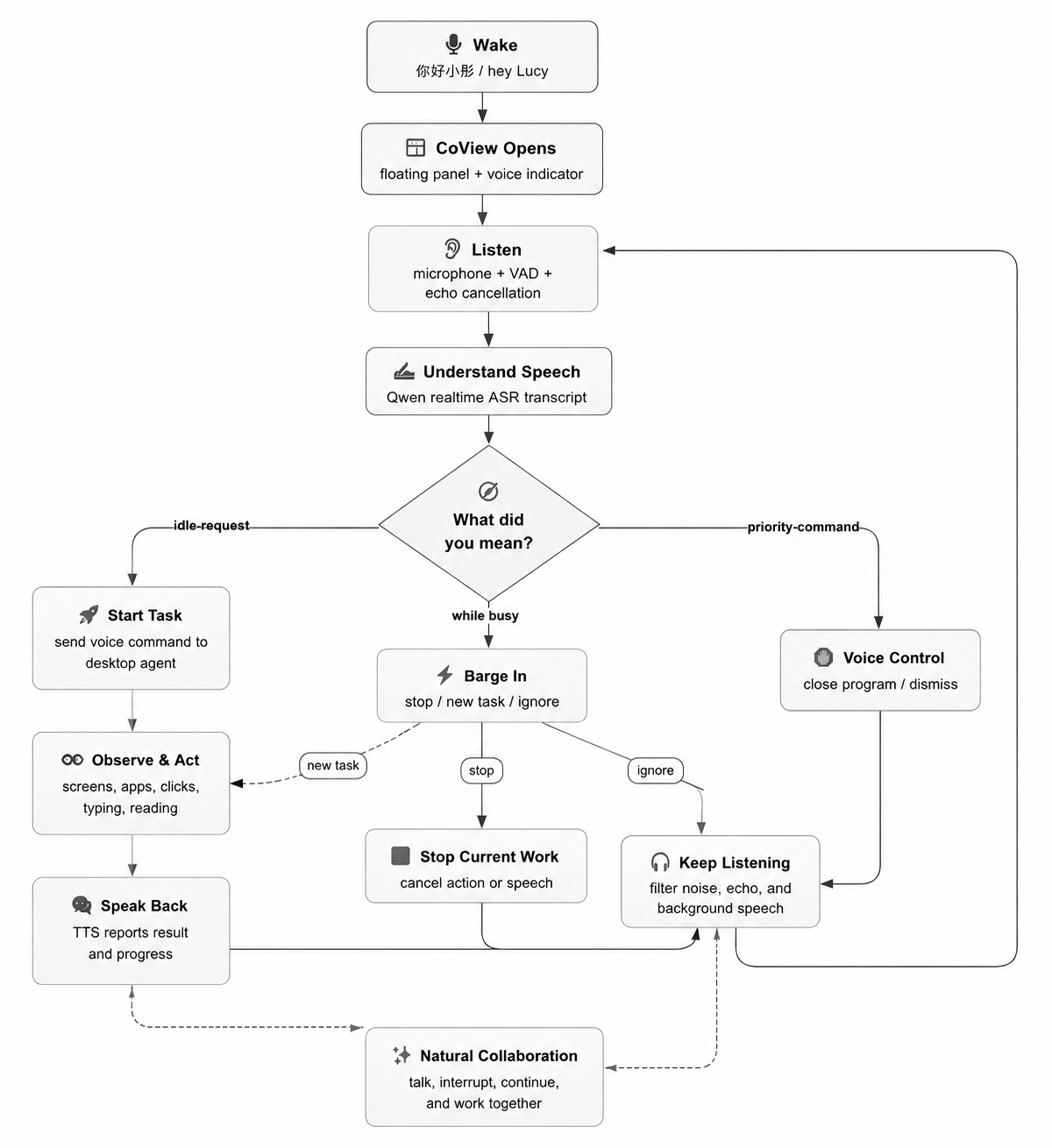
After a local wake word is detected, the floating companion appears, shows voice status, and enters the current task context.
When idle, transcription can become a new task. During execution, CoView can recognize interruption intents such as stop, new_task, and ignore.
Continue listening, stop the current job, exit the program, and receive progress or final results through TTS playback.
Default wake words and control commands
When a task should not block the foreground, CoView can hand code analysis, repository scans, script generation, and batch jobs to a background Code Agent while streaming logs and final results back to you.
Choose the installer for your system and download it directly. We recommend reading the guide before your first run.
For Windows devices. Click to download `CoView-2.0.0-Windows-Setup.exe` directly.
Download for Windows
For macOS devices. Click to download `CoView-2.0.0-macOS.dmg` directly.
Download for macOSLearn how to install, grant permissions, configure settings, and use CoView effectively.
Read the Guide