CoView User Guide
This page explains how to use CoView, including core features, task workflows, voice collaboration, and the meaning of key settings in the configuration window.
Quick Start
Step 1: Install CoView and configure keys
Windows installation
- Download `CoView-2.0.0-Windows-Setup.exe`.
- Double-click the installer and follow the setup wizard.
- After the first launch, open Settings to configure model keys and voice capabilities.
macOS installation
- Open `CoView-2.0.0-macOS.dmg`.
- Drag `CoView.app` into the `Applications` folder.
- If macOS says it cannot verify CoView, open `Terminal` and run:
sudo xattr -rd com.apple.quarantine /Applications/CoView.app- Open `System Settings > Privacy & Security`.
- Grant CoView permissions in the following two sections:
- `Accessibility`
- `Screen & System Audio Recording`
These permissions are required so CoView can observe the screen and perform mouse or keyboard actions with your authorization.
Configure keys
- Right-click the floating ball to open CoView Settings, then go to the model or service configuration area.
- CoView supports AI models and providers with OpenAI-compatible APIs.
- For the current version, Alibaba Cloud Model Studio is recommended for stability and compatibility. API key entry: Get an Alibaba Cloud Model Studio API Key
- Voice features currently support Alibaba Cloud voice models. The voice API key entry is the same as the model API entry: Get an Alibaba Cloud API Key
- If voice features are enabled, select the corresponding Alibaba Cloud voice service or compatible endpoint in voice settings.
- After saving, run a simple task to verify model connectivity, screen observation, and basic operations.
Step 2: Connect model and voice services
- Select an LLM provider and model version for task understanding and planning. The model must support vision, otherwise CoView cannot observe and understand the current screen correctly.
- Configure the ASR engine, microphone device, and wake words for voice interaction.
- Optionally configure TTS playback and voice interruption behavior.
Step 3: Run your first task
- Enter a goal in the companion window, for example: "Open settings and change my wallpaper."
- Review CoView's understanding of the current screen and its execution plan.
- After confirming execution, wait for the action to complete and review the final report.
Step 4: Voice wake-up and interaction
- First configure the microphone, ASR engine, wake words, and voice model in Settings, and make sure voice features are enabled.
- Keep CoView running in the background, then say your configured wake word, such as "hey Lucy" or another custom wake word.
- When the floating companion appears, shows a listening state, or plays a prompt sound, CoView is ready to receive voice input.
- Then speak your task, for example: "Summarize the current page" or "Open system settings."
- During execution, say "close program" to stop the current task and exit CoView.
- If recognition is unstable, check the microphone device, background noise, wake word clarity, and whether the Alibaba Cloud voice model key is configured correctly.
Shortcuts
CoView provides default interaction shortcuts for opening the companion, hiding the panel, and submitting tasks. Defaults vary by system, and the product defaults are recommended first.
Windows shortcuts
- Show / focus companion: `Ctrl + Alt + I`.
- Hide floating panel: `Ctrl + Alt + O`.
- Submit task from input: `Enter`.
- Stop current task: click the stop button, or use the show shortcut again while a task is running.
macOS shortcuts
- Show / focus companion: `Control + Option + I`.
- Hide floating panel: `Control + Option + O`.
- Submit task from input: `Enter`.
- Stop current task: click the stop button, or use the show shortcut again while a task is running.
How to use shortcuts
- Keep CoView running in the background.
- Press the system-specific show / focus shortcut from any interface.
- When the floating companion appears, enter a natural-language task such as "copy the selected text" or "summarize this page."
- Press `Enter` to submit. CoView will observe the current interface, understand the task, and continue with the next actions.
- If you do not need the companion visible, use the system-specific hide shortcut.
A future version will add shortcut customization, so you can choose combinations that fit your system habits and avoid conflicts with other apps. When writing tasks, describe the goal in natural language instead of directly describing platform shortcuts.
Standard Workflow
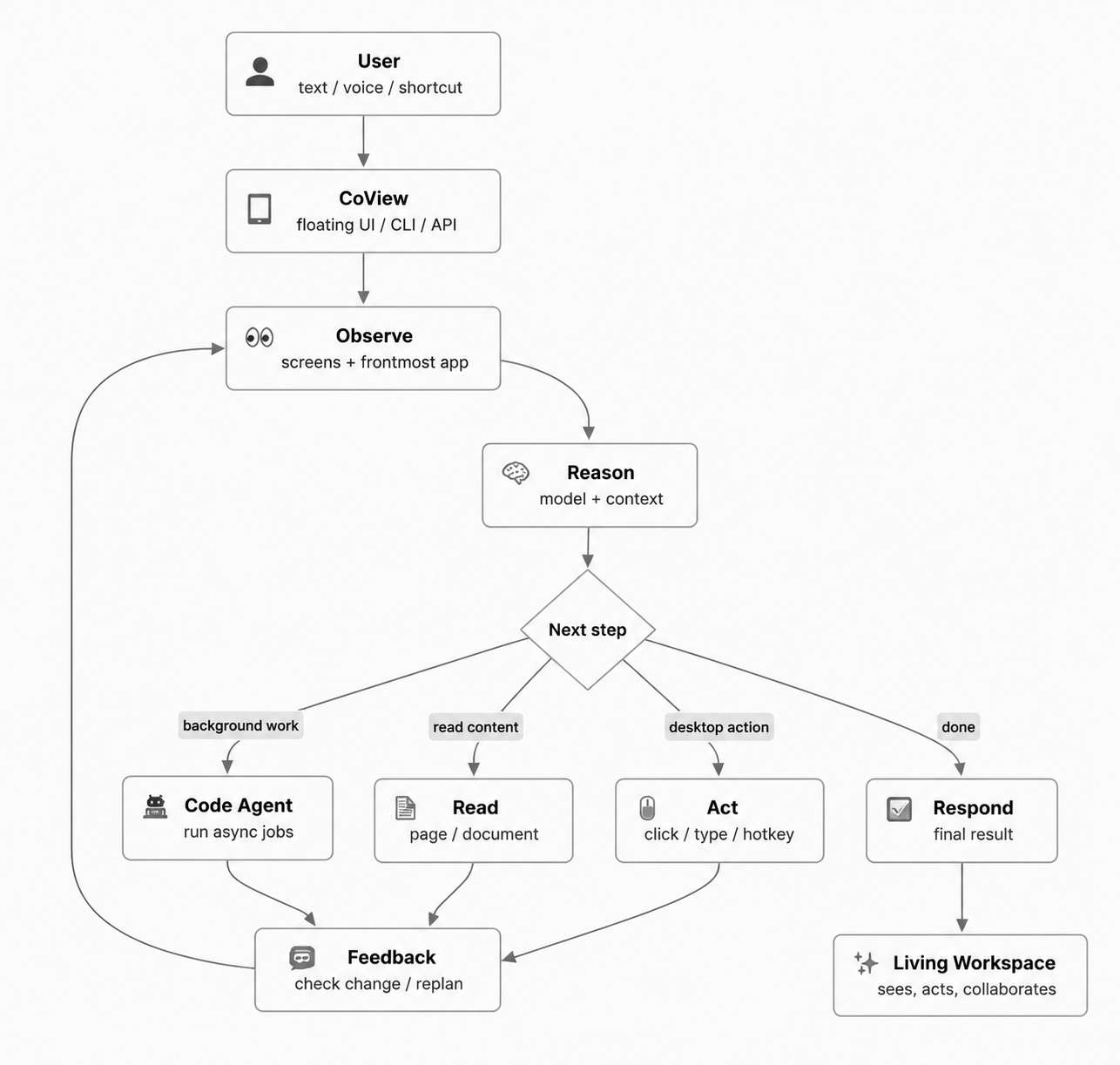
CoView's core flow is: enter a task, observe the environment, understand intent, perform an action, report the result, then re-plan from feedback.
1. Enter a task
Text input, voice input, and shortcut-triggered input all enter the same session context.
2. Observe and read
CoView reads the current screen and foreground app state to provide context for later decisions.
3. Reason and decide
It combines model capability and historical context to produce the next action or ask for confirmation.
4. Act and report
It performs actions such as clicking, typing, reading, or handing work to an Agent, then reports the execution result.
5. Use feedback and re-plan
CoView updates its plan based on interface changes instead of failing immediately when a task is interrupted.
Voice Collaboration Guide
How voice works
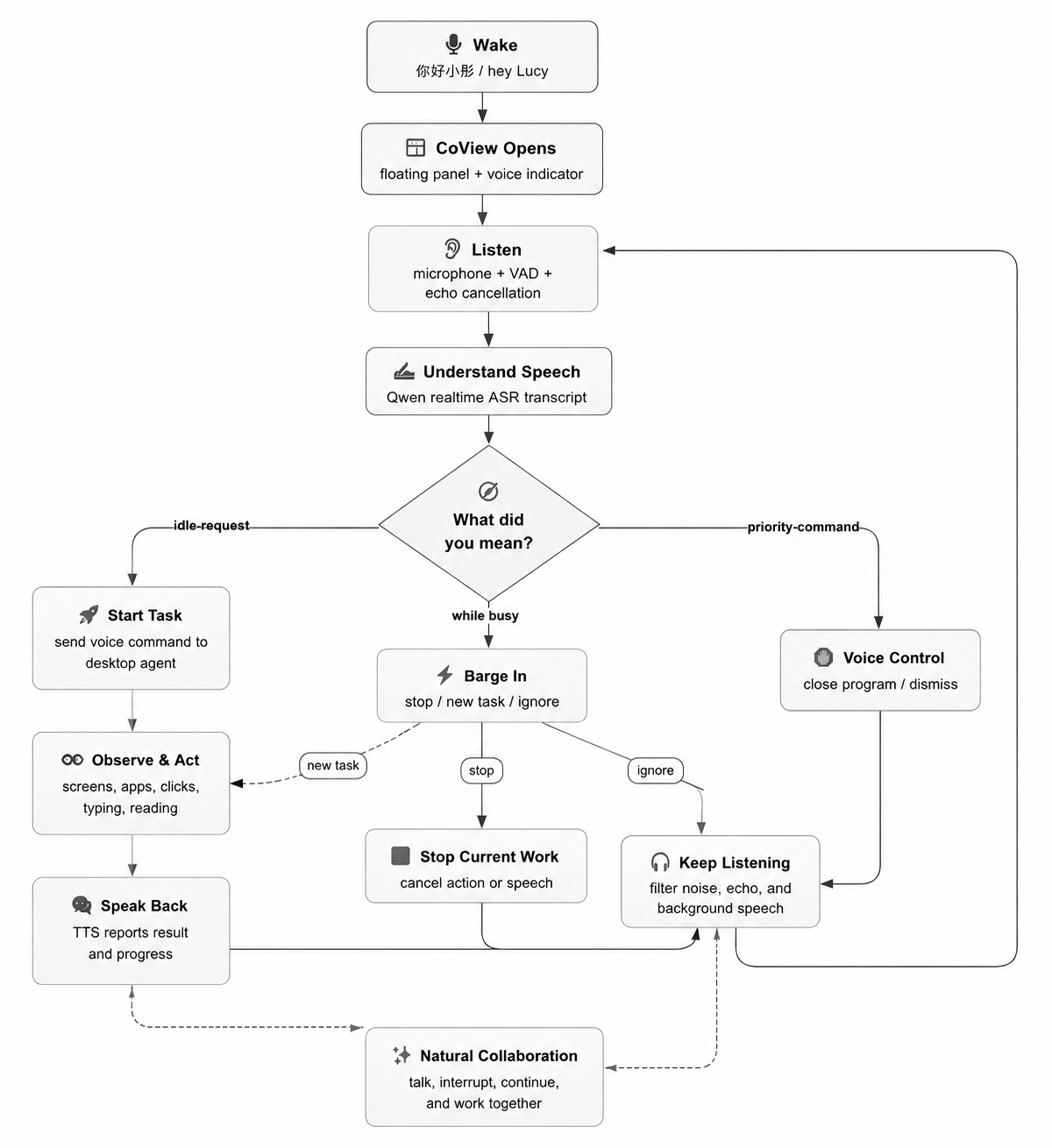
- Wake: activate voice mode with a wake word and show the companion prompt.
- Listen: capture microphone audio with VAD detection and noise processing.
- Transcribe: ASR converts speech into text commands.
- Understand: decide whether the command is a task request or a control instruction.
Common voice commands
| Command Type | Example | Purpose |
|---|---|---|
| Start task | "Summarize the key points on this page" | Enter the task execution flow |
| Stop task | "Stop current work" | Immediately interrupt the current action chain |
| Continue listening | "Keep listening" | Return to listening state and wait for a new command |
| Exit control | "Close program" | Trigger the safe exit flow |
All Settings
The following settings are organized by the current CoView settings window groups and use product-facing names rather than internal code variable names.
General
The API key for the primary model service. It is required to connect to the large model provider.
The request endpoint for the model service. Configure it correctly when using different providers or compatible services.
The model currently in use. Choose a multimodal model that supports visual recognition.
Controls the reasoning mode used during task execution. Different modes affect response style and planning behavior.
Controls how much depth the model invests in reasoning. Higher values usually mean fuller analysis and potentially longer latency.
Controls how much text memory is retained in a session to preserve context continuity.
Controls how many visual observations are retained, affecting visual continuity across steps.
Controls how many historical task records are kept for later context reuse.
Limits how many action rounds a single task can advance, balancing completion depth and execution cost.
Floating Ball
Sets the static image or animated asset used by the floating ball.
When enabled, the floating ball animation keeps playing instead of only playing in specific states.
Controls whether the animation resets to its initial state after the cursor leaves or the state changes.
Voice Interaction
Controls whether CoView can speak response content aloud.
The key used to connect to the text-to-speech service.
The endpoint for the text-to-speech service.
Selects the voice model used for playback.
Controls the speaking voice style.
Controls speaking speed during playback.
Controls playback volume.
Controls pitch variation during playback.
Controls whether voice input, speech recognition, and voice control are enabled.
Selects the speech recognition service provider.
The API key used to connect to the speech recognition service.
The speech recognition endpoint. Required for compatible services.
Selects the speech recognition model.
Controls the language used for speech recognition.
Defines the voice command used to interrupt playback.
When enabled, CoView tries to ignore its own spoken output to reduce false recognition.
Automatically hides the voice interaction interface after a period of inactivity.
Controls whether the current recording or listening status is displayed.
Controls whether local wake word detection is enabled.
Selects the engine used for local wake word detection.
Sets the wake word used in Chinese-language environments.
Sets the wake word used in English-language environments.
Controls wake word sensitivity. A reasonable threshold balances false wakes and missed wakes.
Minimum interval between two wake events to avoid repeated false triggers.
If no voice input arrives after wake-up, CoView exits the waiting state after this timeout.
Controls whether local wake-related status messages are shown.
Companion Suggestions
Controls whether CoView proactively offers assistance while you work.
Controls whether companion suggestions use deeper reasoning.
Controls how long a suggestion remains visible before disappearing.
Waits for the interface to remain stable before triggering suggestions, reducing interruptions.
The time window used to measure how often you switch interfaces.
When this threshold is reached, CoView treats the current activity as too frequent and adjusts suggestion behavior.
Pauses suggestions for a while after high-frequency switching to avoid disruption.
Background Code Agent
Selects the default service provider for background code agents.
Specifies the default working directory for background code tasks.
Controls how many code tasks can run in the background at the same time.
Limits the default maximum execution time for background code tasks.
Advanced
Controls how CoView reports process information while a task is running.
Controls how many steps are executed before reporting current progress.
Waits briefly after tool actions before taking a screenshot, avoiding unstable intermediate UI states.
Controls how long the mouse takes to move from one position to another.
Helps prevent mouse automation from continuing uncontrolled in abnormal situations.
Controls the audio sampling rate for microphone capture.
Controls the chunk size used for each audio processing pass.
Determines whether current audio reaches the energy threshold for starting recognition.
Controls how long speech must continue before the system treats the user as speaking.
Controls how long silence must continue before a sentence is considered finished.
Keeps a short audio buffer before speech starts to reduce clipped sentence beginnings.
Limits the maximum duration of a single voice input utterance.
Attempts to remove echo caused by system playback during realtime voice interaction.
Controls the audio frame length used by the echo cancellation algorithm.
Estimates the delay between system audio playback and microphone capture.
Applies background noise reduction during echo cancellation.
Automatically adjusts input volume to keep the voice signal more stable.
Selects the classifier used to distinguish task instructions from control commands.
FAQ
Q1: Why can CoView reply with text but fail to understand the screen or continue UI tasks?
The most common reason is that the current model does not support visual recognition, or the model API is OpenAI-compatible but does not actually provide image understanding. Check that Model Name, Base URL, and API Key are correct, and confirm that the selected model supports vision.
Q2: Why can CoView not control the interface properly after installation on macOS?
macOS requires Accessibility and Screen & System Audio Recording permissions in System Settings > Privacy & Security. If macOS says the app cannot be verified, run the quarantine removal command first, then reopen the app.
Q3: Why is voice wake-up or speech recognition not responding?
Check these four items in order: whether Voice Interaction or Local Wake is enabled, whether microphone permission has been granted, whether the Alibaba Cloud speech recognition keys are correct, and whether the local wake word model has been downloaded. Default wake words include "ni hao xiao tong" and "hey Lucy."
Q4: Why does playback still create echo or get recognized by the microphone?
CoView supports optional WebRTC echo cancellation. If that dependency is unavailable, voice input can still work, but TTS echo filtering may be weaker. In that case, enable Filter Playback Echo and reduce speaker and microphone volume where possible.
Q5: Why can some windows be controlled on Windows while elevated windows cannot?
Normal apps can usually be controlled directly. If the target window is running with administrator privileges, CoView must run at the same privilege level, meaning CoView should be launched as administrator. This is especially common with system settings, installers, and protected windows.
Contact
QQ Group: 859824745